
What the Meta Pixel and Conversions API do, why they matter for your ads, and a 10-minute checklist to see whether your tracking is working.
Say “tracking” at a dinner party and watch people suddenly remember they need to refill their glass. It’s not the most exciting topic, but it might be the most important one in this whole series.
Here’s why. Meta’s ad system learns from the information you give it. If it can see which clicks turn into enquiries and customers, it gets better at finding more of them. If it can’t, it’s guessing.
Think of it like training a sniffer dog. If you never tell the dog when it finds the right thing, it’ll happily bring you old socks all day.
What the Meta Pixel does
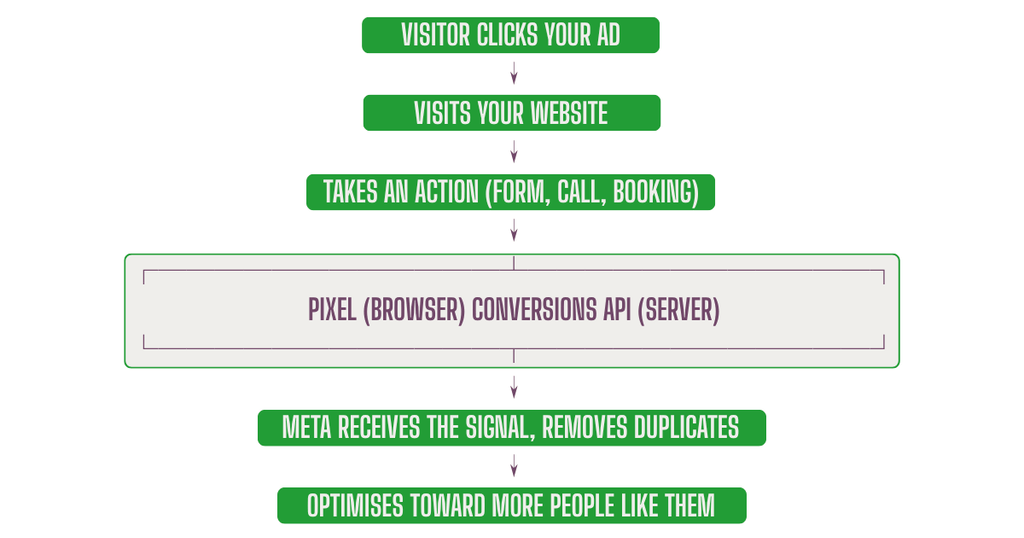
The Pixel is a small snippet of code on your website. When someone visits, it can tell Meta things like:
- They viewed a page
- They filled in a form
- They clicked “call”
- They booked or bought
Meta matches these actions back to the ad the person saw, so it knows what worked.
Why the Pixel alone isn’t enough anymore
The Pixel runs in the visitor’s web browser, and browsers have become far more privacy-focused. Ad blockers, browser protections and people declining cookie banners all mean some actions never get reported. The result is gaps in the picture.
What the Conversions API does
The Conversions API (often shortened to CAPI) sends information to Meta directly from your server or system, rather than relying only on the visitor’s browser. It’s like having a second, more dependable route for the message to arrive.
Used together, the Pixel and Conversions API give Meta a fuller and more reliable view. Meta recommends using both.
Three terms worth knowing
Event. An action you tell Meta about: “Lead”, “Contact”, “Schedule”, “Purchase”.
Deduplication. If both the Pixel and the Conversions API report the same action, Meta needs to realise it’s one event, not two. Without it, your results can look double what they really are. This is done by sending matching event identifiers.
Event Match Quality (EMQ). A score in Meta’s Events Manager showing how well the information you send can be matched to real people. Higher is better, and it improves with accurate details like email and phone number (sent securely and in line with consent rules).
Consent and privacy
This isn’t just technical. In the UK and EU, rules like GDPR and PECR generally require you to get consent before using non-essential cookies and tracking. Your cookie banner and your tracking setup should agree with each other. If someone declines, tracking should respect that. If you’re unsure, take advice, and don’t just copy a banner from somewhere else and hope for the best.
Why it matters even more now
Because Meta’s AI does the targeting itself, the quality of the signals you give it matters more than ever. Good tracking helps it learn faster, find better prospects and report more accurately. Poor tracking can mean wasted budget, confusing numbers and decisions based on incomplete information.
For lead-generation businesses, there’s a further step: telling Meta not just that someone submitted a form, but that the lead was qualified or booked in. That teaches the system what “good” looks like. We cover it in [link to Article 8].
Check your tracking in 10 minutes
You don’t need to be technical to run this basic health check:
- Open Events Manager in your Meta Business account and find your Pixel or dataset.
- Check it’s active. Do you see recent events coming in?
- Use the Test Events tool. Visit your site, take the actions you care about (submit a form, click call) and watch them appear.
- Look for the right events. Is “Lead” (or your key event) firing on the thank-you step, not just on page load?
- Check for duplicates. If you use both the Pixel and Conversions API, are events being matched and deduplicated?
- Review Event Match Quality for your key event. Low scores suggest you could send better customer information.
- Check your consent banner. Does declining cookies actually change what’s tracked?
- Compare with reality. Do Meta’s lead numbers roughly match what’s in your inbox, CRM or booking system?
- Look for warnings. Events Manager flags issues. Don’t ignore the little triangles.
- Write down what you find. A simple note helps if something changes later.
If a few of these gave you a headache or a “hmm”, you’re in good company. It’s among the most common problems we find in new accounts.
Want a second pair of eyes?
A tracking audit is one of the most valuable things we do. We check your setup, spot what’s missing and tell you plainly what to fix, Get In Touch to see how we can help.
Last reviewed: 6 October 2026. Meta’s tools and menu names change, so check current guidance in Meta’s Business Help Centre.